How to Automate Jobs
Transform regular or scheduled work into automated jobs that run on their own, no code required, using the scheduled jobs feature.
Article
4 minute
read
Transform regular or scheduled work into automated jobs that run on their own, no code required, using the scheduled jobs feature.
What you’ll learn
By the end of this guide, you will have:
- Created an automated task.
- Scheduled it to run on its own.
- Configured alerts so you know when it finishes (or fails).
Before you start
Requirements:
Task permission: Usually an Admin or Owner role
Agent: The worker performing the task
Assets: Any files, API keys, or secrets the task needs
1. Creating your first automated task
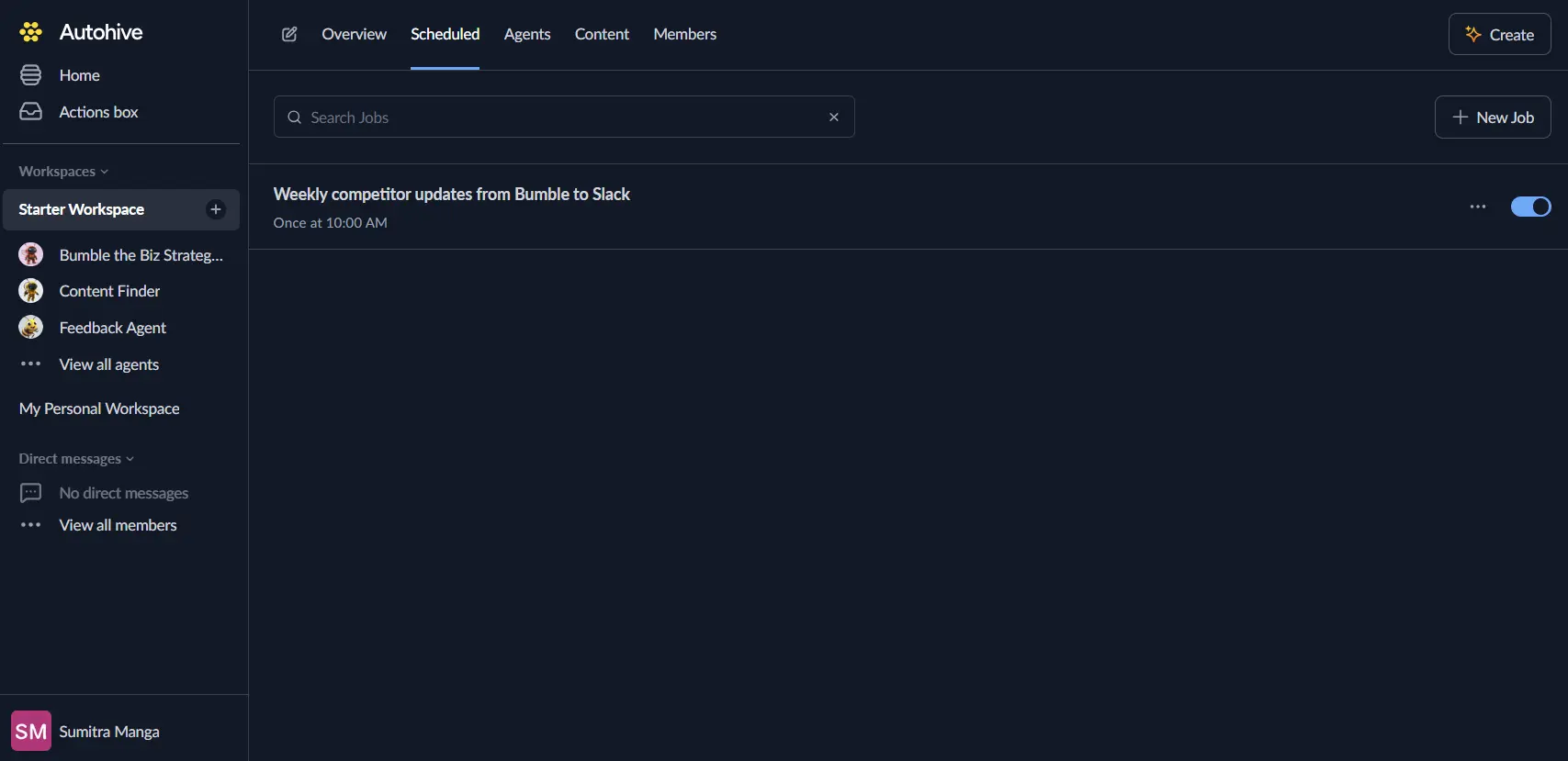
1.1 Open the scheduled page
Navigate to your workspace by clicking on a workspace in the sidebar that you’d like to schedule a task for.
Click Scheduled in the top menu.
1.2 Start a new task
Click New job in the top-right corner.
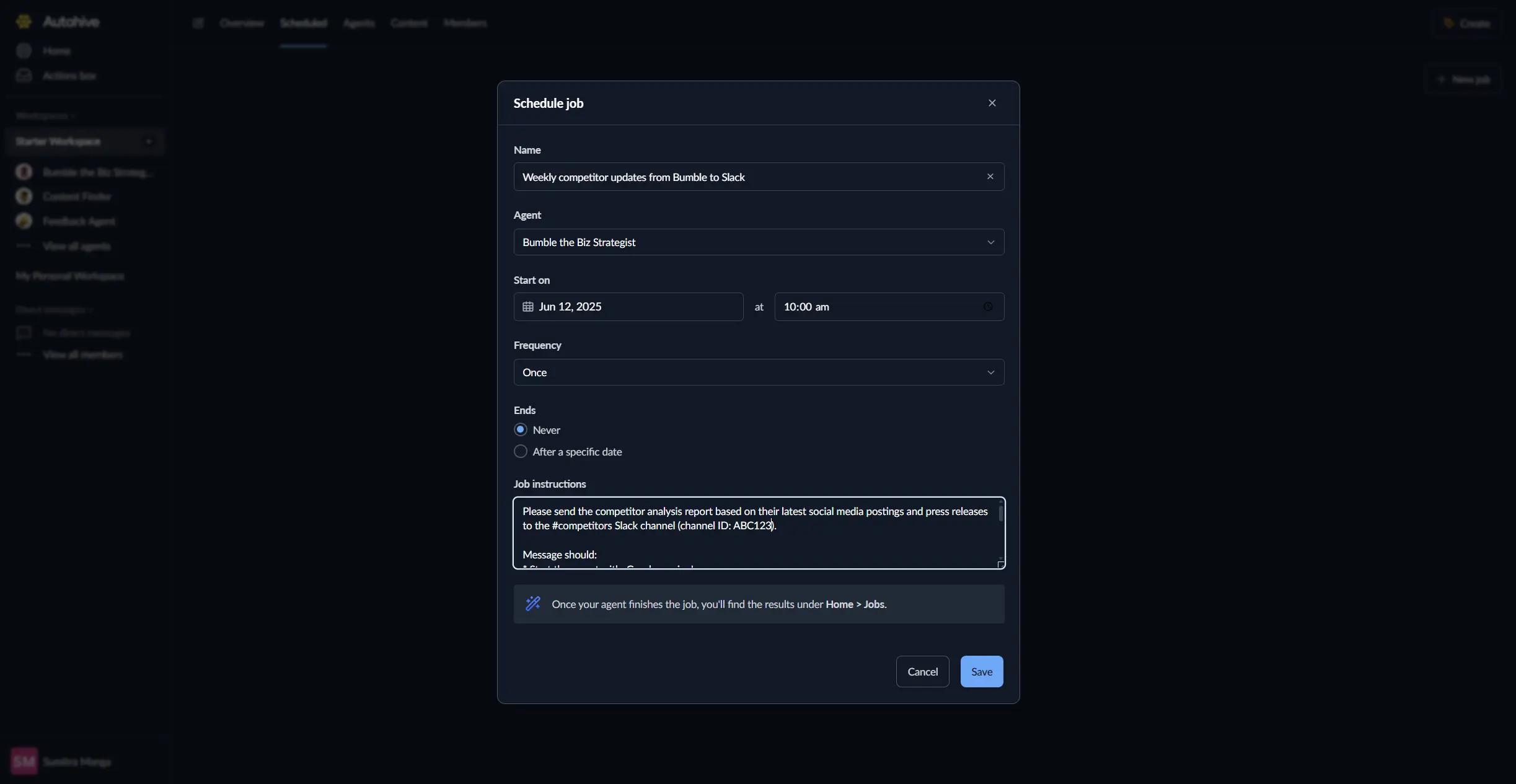
1.3 Name your task
Use clear names like “Daily sales summary”.
1.4 Pick an agent
Select which Agent will handle the work.
1.5 Set the schedule
Select the date you would like to start the job and select the frequency.
Common frequency: Every weekday at 08:00
Custom frequency: Every 1 hour
1.6 Add instructions
- Tell the agent what to do, such as “Send a sales summary report based on my HubSpot data to my #XYZ Slack channel”.
- Attach any files or set custom fields.
1.7 Save and start
Your task appears as Active in the list.
💡 Turn the task Off using the toggle if you want to pause the task.
2. Testing your task
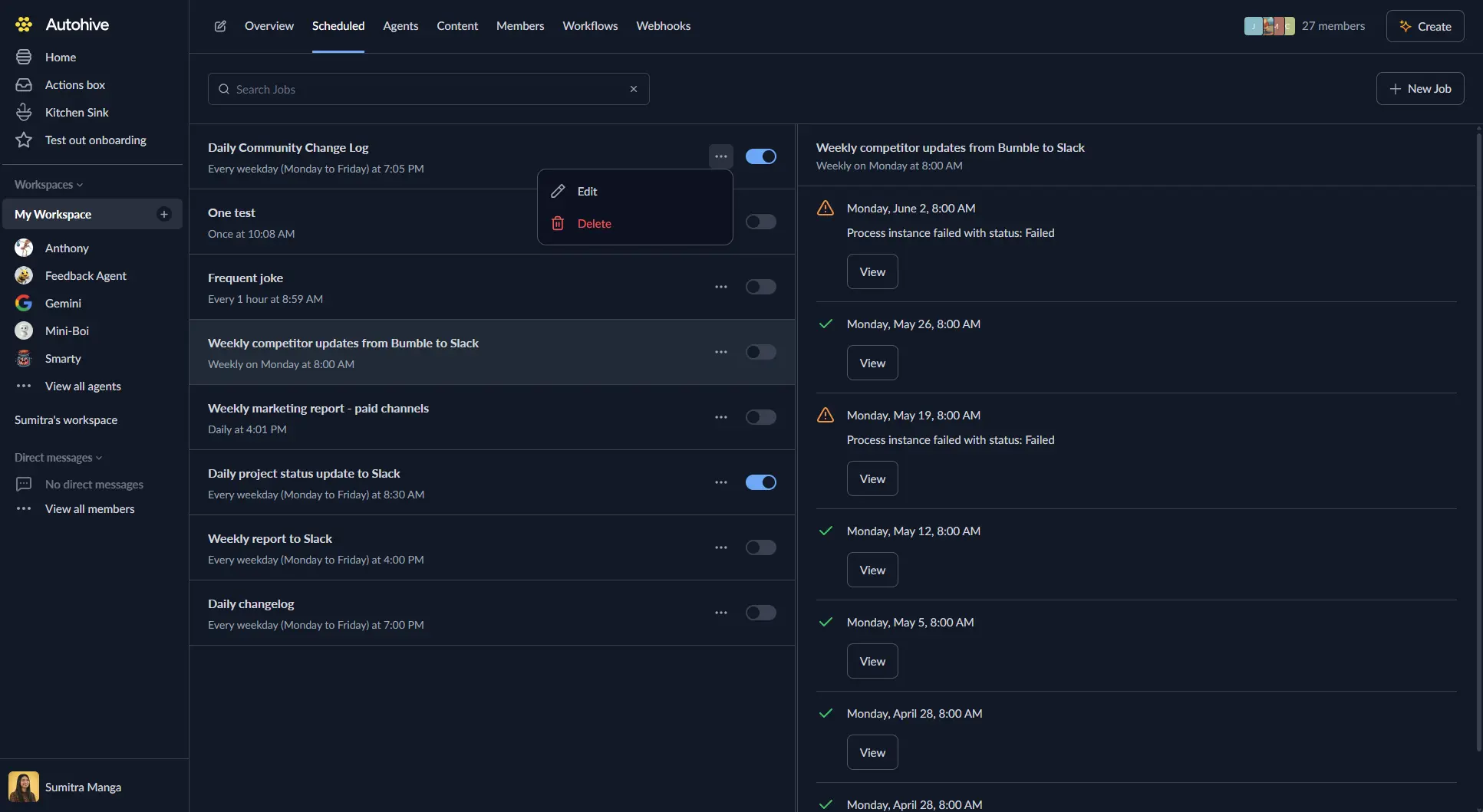
- Find your task in the list.
- Select the toggle to enable the task.
- Click on the task and watch the log panel for progress.
- Check results where you expect them (e.g., Slack or email). You can also click ‘View’ in the logs panel to see completed tasks in the agent chat.
3. Managing tasks
| What to do | How | Good to know |
|---|---|---|
| Pause / Start | Toggle switch | History is kept while paused |
| Change schedule | Task → Edit | Old runs stay recorded |
| Remove | Delete option | Deletes all history too |
4. Common ways to use automated tasks
- Daily updates: Get CRM activity summary at 07:00.
- Weekly cleanup: Archive old files every Friday.
- Monthly reports: Analyse data and draft report on the 1st.
- Instant responses: Generate welcome materials when new users join.
5. Tips for reliable automation
- Start with simple tasks and short intervals.
- Use descriptive names that show timing + purpose.
- Ensure you test the tasks that have been created.
What to try next
- Need more advanced agent options? See the Agent ecosystem guide.
- Want to connect other apps? Check the Integrations documentation.
Let your agents handle routine work while you focus on what matters.
More guides...
Jobs
Intermediate
How to Automate Jobs
Article
4 minute
read
Transform regular or scheduled work into automated jobs that run on their own, no code required, using the scheduled jobs feature.
Build your first AI agent in minutes, not months
Start free today and discover how quickly your team can create AI agents that handle repeated work - with enterprise-grade security built in