What you’ll learn
- How to invite teammates and assign roles.
- Best practices for collaborative chats.
- Managing shared content & permissions.
- Keeping everyone informed without noise.
1. Adding team members
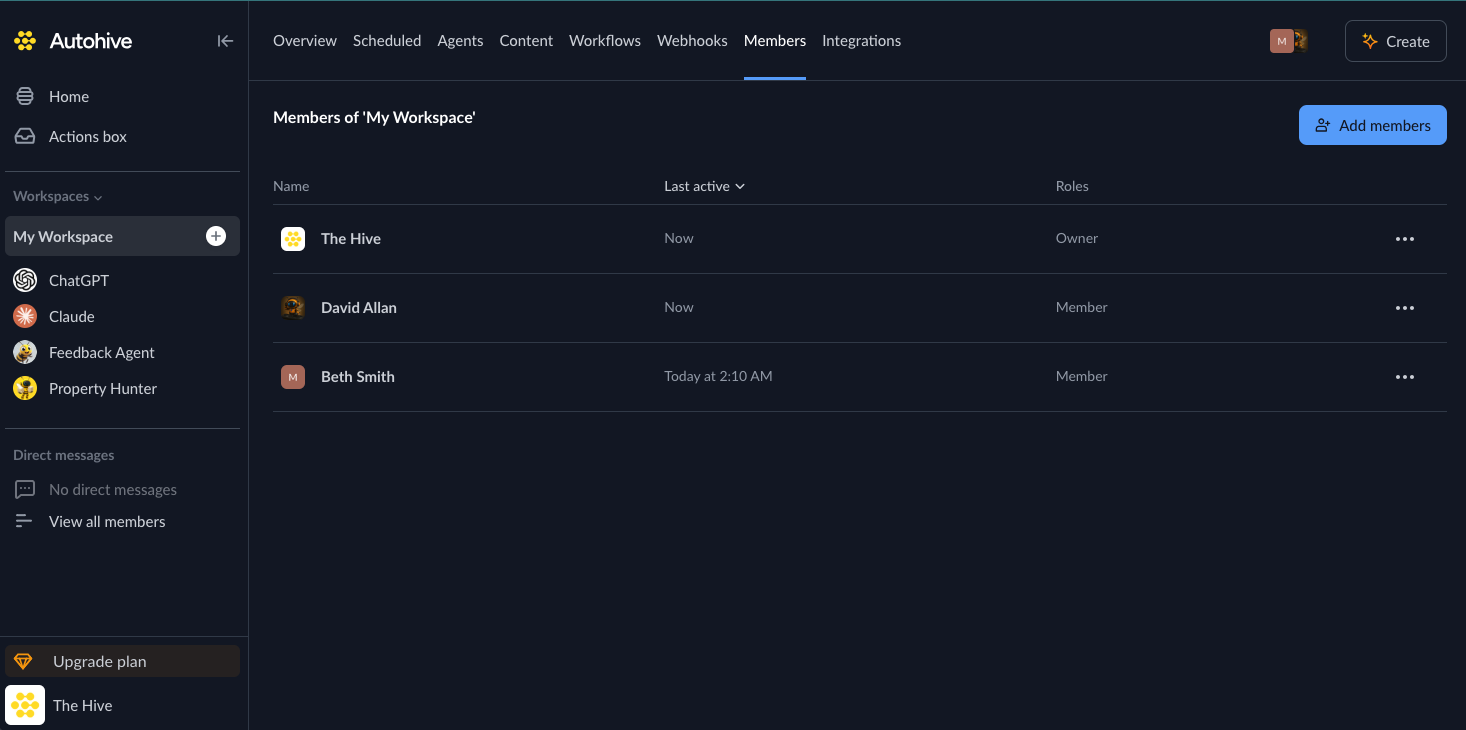
- Go to a workspace and head to Members.
- Click Add members.
- There are various ways to invite members: a. Enter the name of the member you would like to invite to the particular workspace. b. Enter the email address of a non-existing member you would like to invite into the organisation. c. Copy the ‘Bulk invite’ link to share with members of your company to automatically get invited into the Autohive platform.
- Send invites, and each person will receive an email to join.
2. Understanding access levels
| Role | Typical Use | Key Abilities |
|---|---|---|
| Owner | Plan owner/team lead | Full plan control, billing, delete plan, manage all members |
| Manager | IT / Ops lead | Manage workspace members, content, jobs, integrations (no billing) |
| Member | Standard collaborator | Chat, use agents, upload content, run jobs |
3. Working together in chats
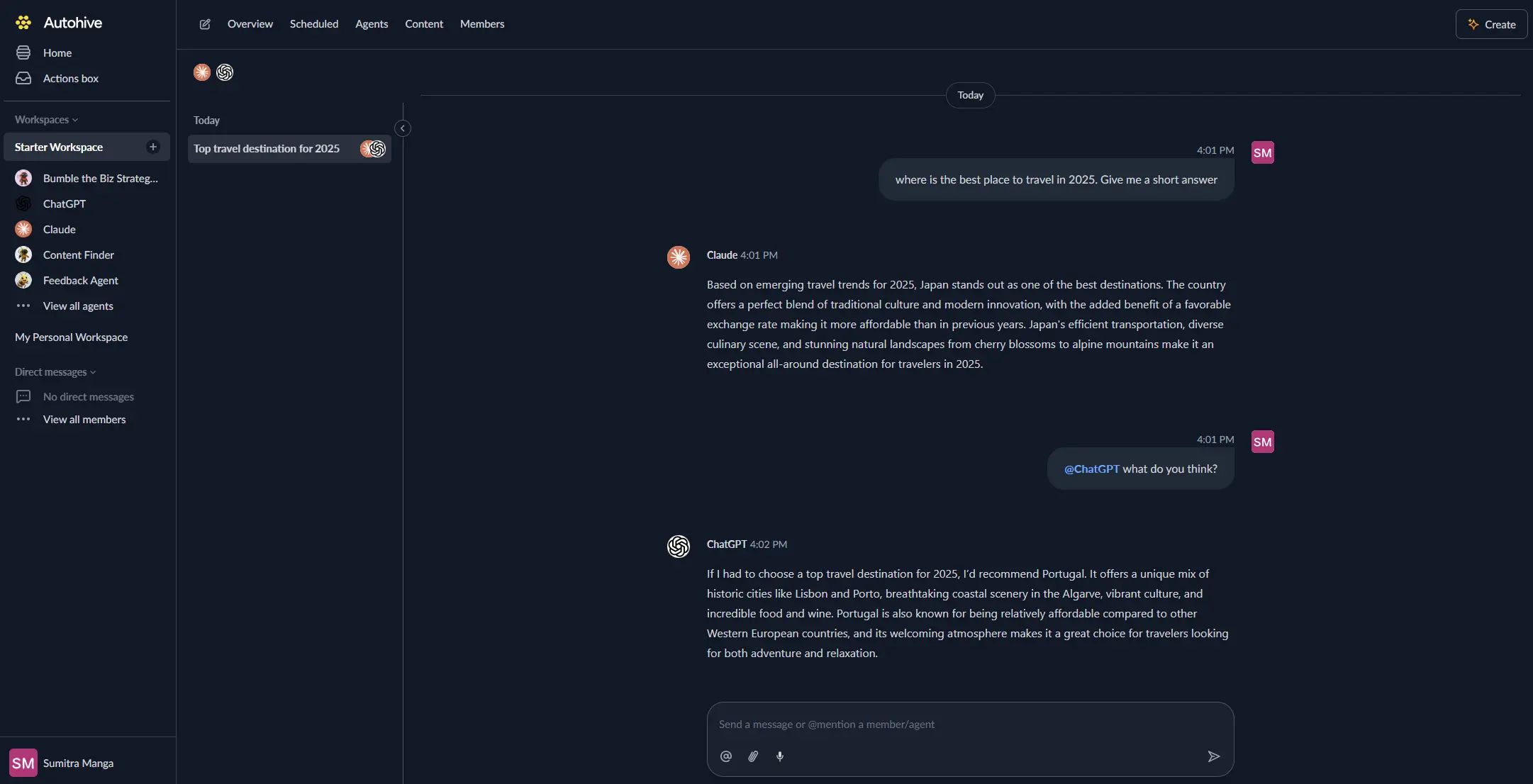
- Start group conversations with teammates and agents by heading into an agent chat.
- Use @mention to add members and agents (e.g. @alex).
- Share files directly via the Agent settings, and agents can read them instantly.
4. Managing shared content
There are currently two areas of permissions covered within the Content hub.
| Folder type | Who can see it |
|---|---|
| Workspace | Everyone in the workspace |
| Personal | Only you, until you share it |
“My Personal Folder” will not be searchable via our chat due to security reasons (Chats with users who aren’t intended to view the files). The alternative is to download the file and add it to the chat if it is required.
5. Using agents as a team
Agents can help your team:
- Brainstorm ideas in group discussions.
- Expand outlines into full documents.
- Revise work based on collective feedback.
6. Managing automated tasks together
- View all tasks in one dashboard.
- Assign task owners for notifications.
- Test changes before updating active tasks.
7. Staying updated (without overload)
- @mention an agent will automatically added to the chat so there should be no way for them to miss a mention
8. Tips for better teamwork
- Set up roles correctly from day one.
- Keep separate topics in separate chats.
- Save important decisions in dedicated channels.
9. Common problems & fixes
| Problem | Why it happens | How to fix |
|---|---|---|
| Can't see a file | It's in someone's personal folder | Move it to a workspace folder due to our permission system |
| Agent misses mention | Agent not added to chat | Add the agent or start a new chat |
These tools help your team turn individual effort into collaborative success within Autohive.
More guides...
Members
Account
Beginner
How to Collaborate With Your Team on Autohive
Article
3 minute
read
Make the most of Autohive by collaborating inside a shared workspace. This guide covers how to bring in team members, share information, and coordinate work between people and agents.
Account
Beginner
Managing Your Content
Article
3 minute
read
This guide shows you how to add, organise, and use content effectively with agents.
Build your first AI agent in minutes, not months
Start free today and discover how quickly your team can create AI agents that handle repeated work - with enterprise-grade security built in